PC Gaming on Android is Here
The dream of playing full PC games on a mobile device is now a reality. Thanks to Winlator, an open-source Android application that uses Wine and Box86/Box64, you can run Windows x86/x64 applications and games directly on your ARM-based processor. Here is the ultimate setup guide to get you up and running with maximum frame rates.
Choosing the Right Winlator Version
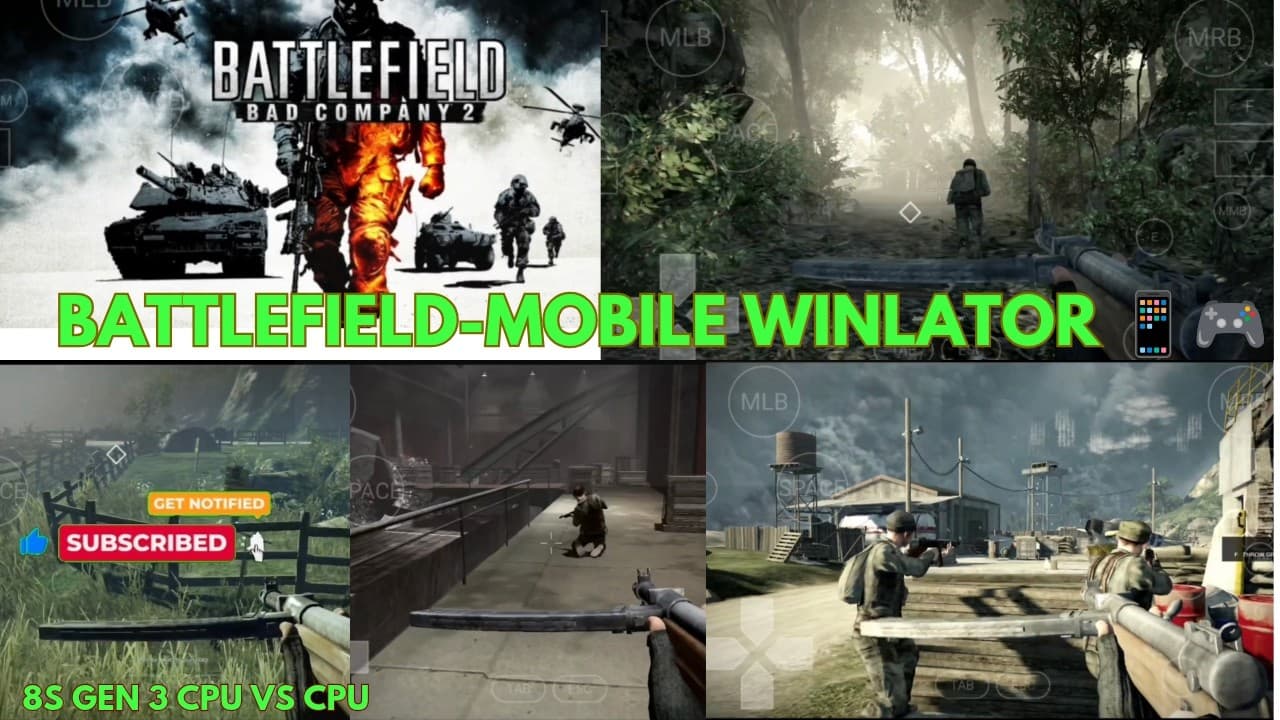
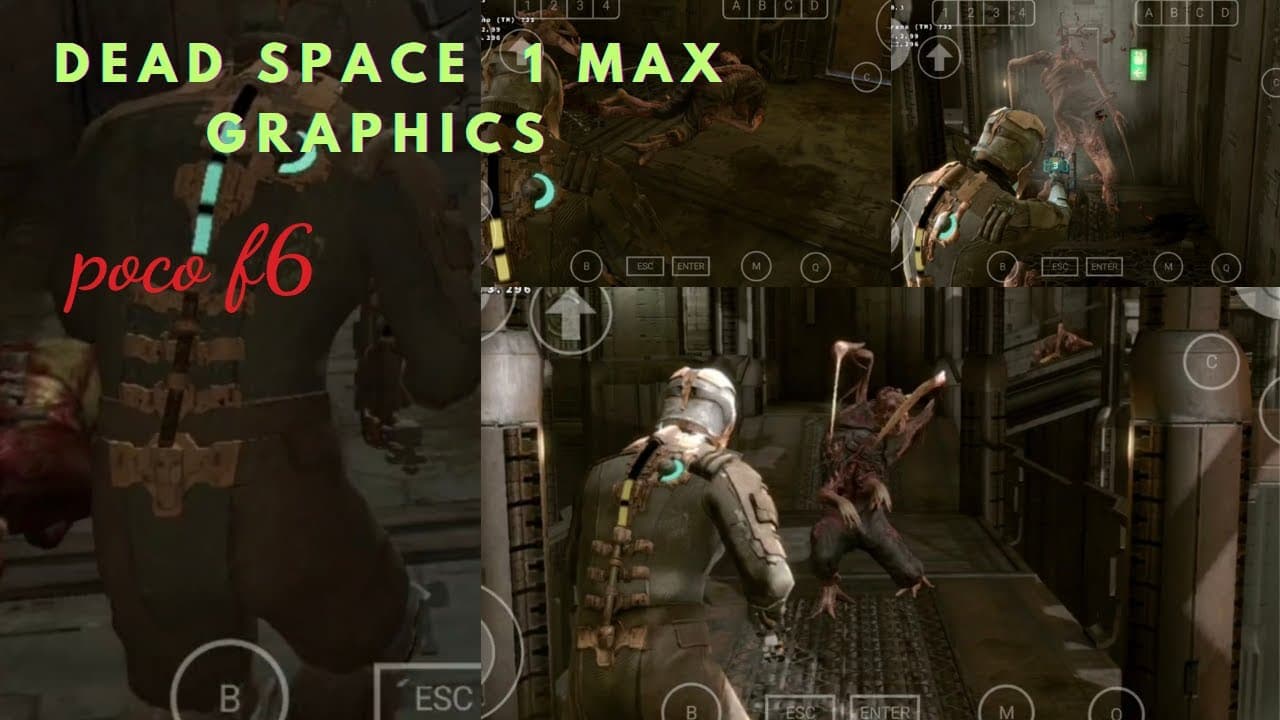
While the official Winlator repository provides stable releases, many developers in the gaming community release modified versions (such as Winlator Frost or Winlator Glibc) that offer improved support for modern processors like the Snapdragon 8 Gen 3 or 8s Gen 3 (found in the Poco F6). Always check community forums to see which version works best for your specific CPU.
Step 1: Container Creation and Configuration
To run any game, you must first create a virtual Windows environment called a container. Open Winlator, tap the '+' icon in the top right, and configure the following settings:
- Screen Resolution: Choose 800x600 or 960x540 for demanding games. The lower the resolution, the higher your FPS will be.
- Graphics Driver: Select Turnip (Adreno) if you have a Snapdragon device. For other processors, Zink or VirGL can be used, though Turnip offers the highest compatibility and performance.
- DXVK Version: DXVK converts DirectX 9/10/11 calls into Vulkan. DXVK 2.2 or 2.3 is recommended for most games. For older DirectX 8 or 9 titles, WineD3D might occasionally offer better compatibility.
Step 2: Optimizing CPU Cores (Affinity)
Modern mobile processors use a big.LITTLE architecture, separating performance cores from efficiency cores. To prevent stuttering, bind your Winlator container to use only the big cores (typically cores 4-7 on an octa-core CPU). This ensures your game gets uninterrupted access to the processor's maximum power.
Step 3: Setting Up Input Controls
Winlator features a powerful virtual controller mapping tool. You can build completely customized on-screen buttons and sticks that map to keyboard keys or mouse clicks. Alternatively, you can connect a physical Bluetooth controller (like a Gamesir or Razer Kishi) and bind it directly within the emulator.
Pro Tip: Set the environment variable MESA_VK_WSI_PRESENT_MODE=immediate in your container settings. This can help bypass vertical sync (V-Sync) limits, unlocking frame rates above 60 FPS on high-refresh-rate screens!
Conclusion
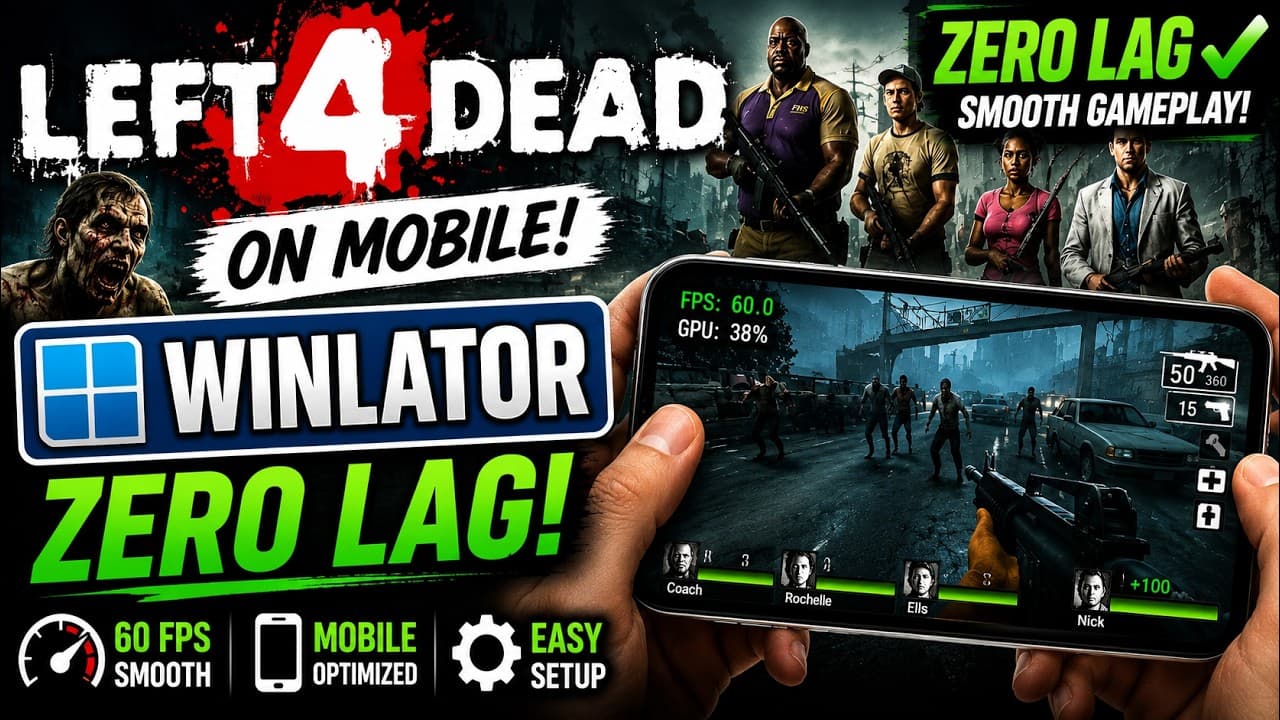
Emulation requires patience. If a game crashes, try changing the Wine version, switching to a different DXVK wrapper, or adjusting the in-game display settings. With a bit of tweaking, you can carry classics like Dead Space, Left 4 Dead, or S.T.A.L.K.E.R. right in your pocket!